
Audio and video calling are available on Pets4Homes, in the app and now on the website too. Hearing a voice or seeing a face builds trust faster than messages alone, so it's the easiest way to have that first real conversation, ask questions, and even see the pet live before deciding.
TABLE OF CONTENTS
- Where can I make and receive calls?
- Start using calls in chat
- During the call
- What if I don’t want to receive audio or video calls?
- How do I know if the other person is available?
- Tips for a great audio or video call
Where can I make and receive calls?
You can call, and be called, in two places:
- The Pets4Homes app (iOS and Android). This is the best experience: you'll get an instant call notification wherever you are, even if the app is closed or in the background, just like WhatsApp.
- Pets4Homes on the web. Start or take a call from any chat, on desktop or mobile browser. For calls to ring through, you'll need notifications turned on and Pets4Homes open in a tab or browser window.
Want instant call alerts wherever you are? Get the app:
If you’re using an iPhone or iPad:
- Open the App Store
- Search for "Pets4Homes"
- Tap Get to install, or Update if you already have it
- Or go directly: [Download on the App Store]
If you’re using an Android phone or tablet:
- Open the Google Play Store
- Search for "Pets4Homes"
- Tap Install or Update
- Or go directly: [Download on Google Play]
Once installed or updated, open the app and sign-in to your account.
Start using calls in chat
Permissions
The first time you make or receive an audio or video call, the app will ask for access to your microphone and camera.
Make sure to grant these permissions. If you deny them by accident, you can re-enable access in your device settings.
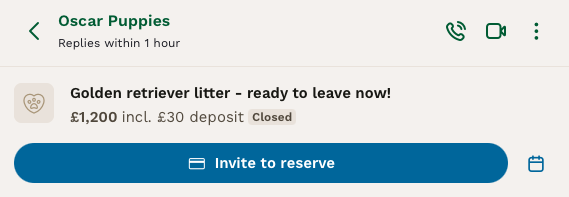
How do I start a call?
- Open a chat with the other user, in the app or on the website
- Tap or click the audio or video call icon at the top of the chat
- Wait for the other person to accept
How do I receive a call?
Receiving a call works just like WhatsApp or Messenger: if the other person is available, it rings; if not, it rings out and shows up in the chat as a missed call, so they can see it and call back.
- On the app: you'll get an instant call notification wherever you are, even with the app closed.
- On the website: you'll see the call if you have browser notifications on, or if you're actively on the Pets4Homes site when it comes in.
You can choose to:
- Accept the call
- Reject the call
If you reject it, it’s polite to send a message explaining why or suggesting a better time.
During the call
Call settings
While on an audio or video call, you can:
- Turn your camera on or off
- Mute or unmute your microphone
- Switch between front and back cameras: for example, to talk face-to-face or show the pet, their litter, or your home
Ending the call
When you're done, tap the red End Call button to hang up and close the call for both sides.
What if I don’t want to receive audio or video calls?
It’s best to agree with the other user on how you’d like to communicate, for example, stick to chat if that’s your preference.
If someone is calling too often or bothering you, you can:
- Block them via chat settings
- Report them to Pets4Homes directly from the chat if they’re being inappropriate or breaking the rules
How do I know if the other person is available?
Look for their online status next to their name in chat:
- Online: they're active right now, so it's a great time to try a call
- Offline: you'll see their typical response time instead, for example "Replies within a day". Calling still works, it'll ring through if they're on the app, or show as a missed call they can return.
Tips for a great audio or video call
For sellers
- Agree on a time in advance so the buyer is ready with their questions
- Choose a well-lit space to show the pet clearly
- Use strong Wi-Fi and headphones with a mic if possible - it helps avoid lag and keeps audio clear
- Have the pet nearby and calm before the call starts
- Start with your face on camera - this builds trust. Then switch to the back camera to show the pet using the icon on the call screen
- Hold the phone steady for a better view
- Show what matters: the pet, their space, mum/dad, or documents if asked.
For buyers
- Message first and ask when the seller is free to call.
- Start with your face on camera - it helps build a friendly connection.
- Prepare a list of questions - check our Buyer Checklist and read up on the breed [link] for inspiration.
- Use strong Wi-Fi and headphones with a mic if possible - it makes it easier to hear and be heard.
- Be respectful of the seller’s time
- Be ready to show your home if asked - good breeders often want to see where their pet will live.
- Ask about next steps if you're happy - like how to reserve the puppy of your choice by paying for your pet through Pets4Homes, initiated in chat.